
Introduction
Manual block and unblock allows an instance to control the status of wallets and whitelisted addresses. This functionality is designed so that instance administrators can restrict or restore the use of resources associated with those structures.
With this flow, the instance gains greater operational autonomy and traceability over who requested each action.
How it works
Overview
This functionality allows instance administrators to request:
- Block and unblock of Parfin wallets
- Block and unblock of addresses registered as trusted (Whitelisted Addresses)
Parfin Wallets
When a wallet is blocked, it remains visible in the Platform, but it can no longer be used for outgoing transfers.
Whitelisted Addresses
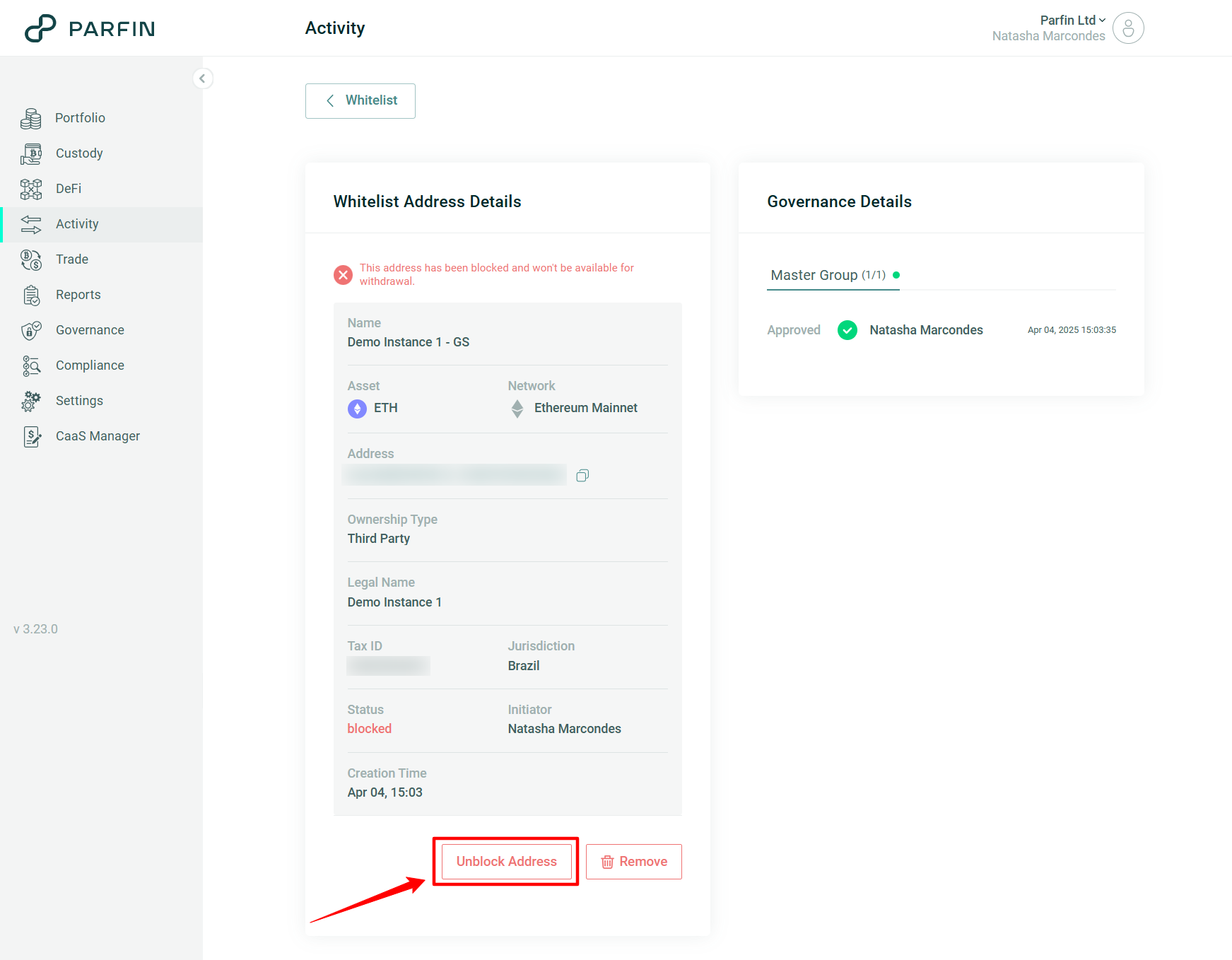
When a whitelisted address is blocked, it remains visible, but it can no longer be selected as a destination in a withdrawal flow.
Operating rules
- Only instance administrators can request a block or unblock action
- Block and unblock requests must go through an approval flow before they take effect
- While a request is pending approval, the status of the resource does not change
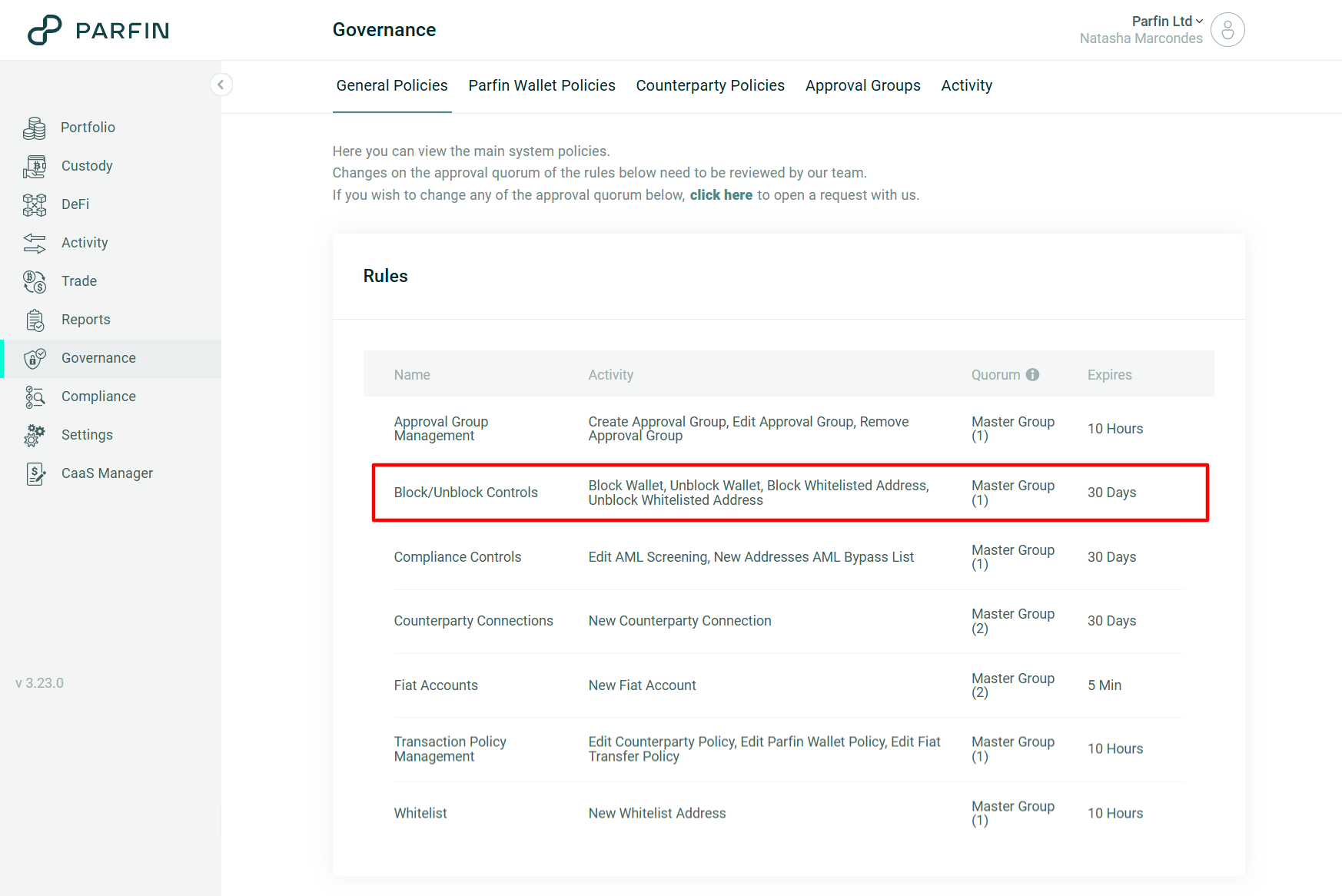
- The governance rule that controls this approval flow is Block/Unblock Controls, available in Governance > General Policies
- If the instance does not have a governance rule configured, the action cannot be performed and the instance must contact Parfin Support at support@parfin.io
Step by step
1. Check whether the instance has the required governance rule
- Go to Governance > General Policies
- Look for the Block/Unblock Controls rule
- Confirm that the rule exists
2. Block or unblock a wallet
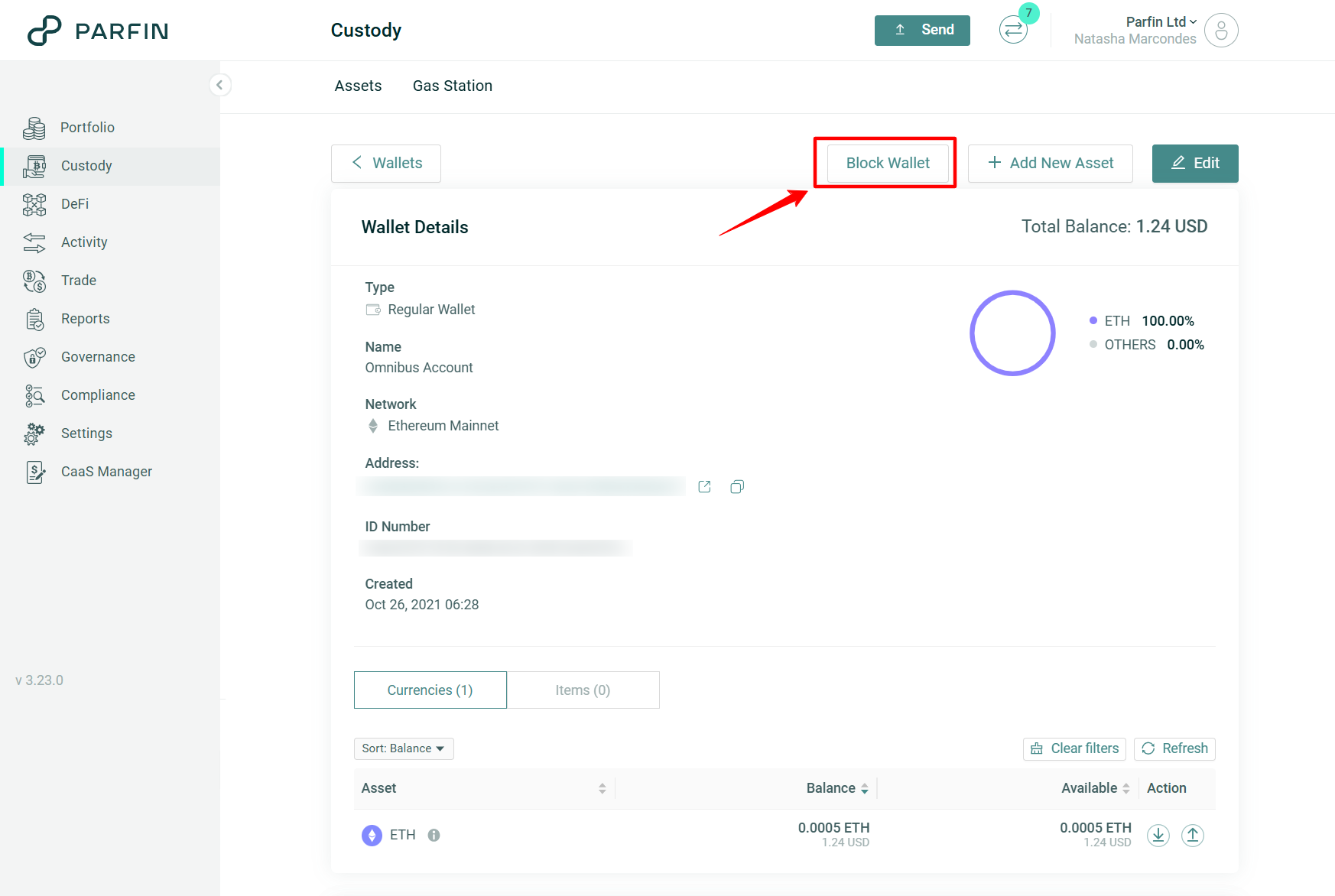
- Open the Wallet Details page for the wallet you want to update
- Click Block Wallet to block it or Unblock Wallet to unblock it
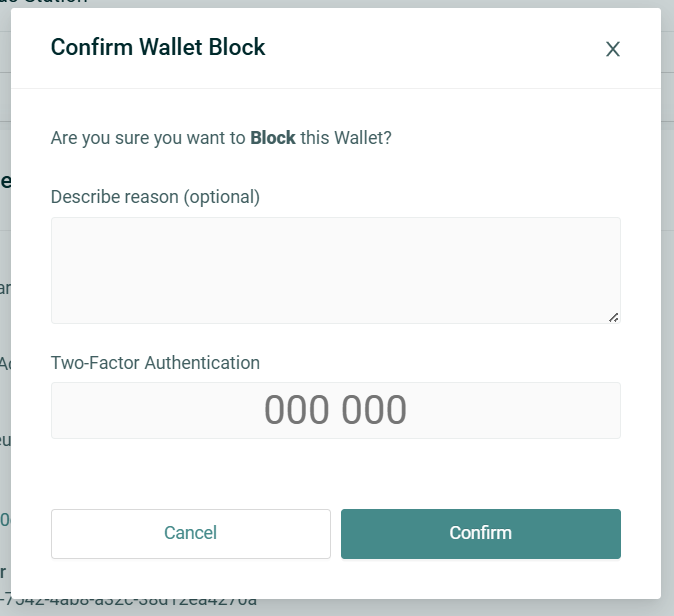
- In the confirmation modal:
- fill in the 2FA field
- provide a reason, when applicable
- Confirm the action
Expected result:
- if no additional approvals are required, the change is applied immediately
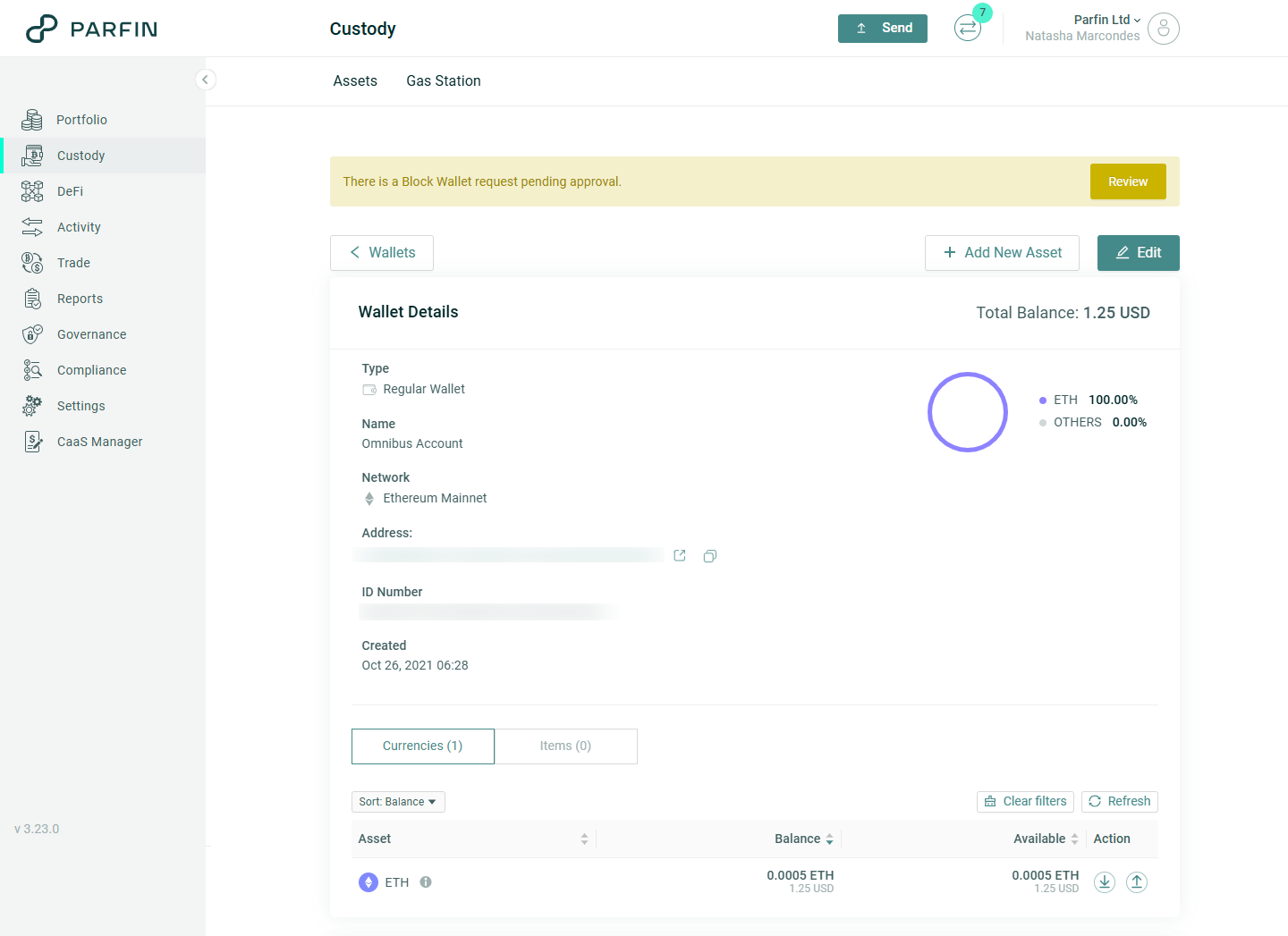
- if additional approvals are required, the request remains pending and the wallet keeps its current status until final approval
3. Block or unblock a whitelisted address
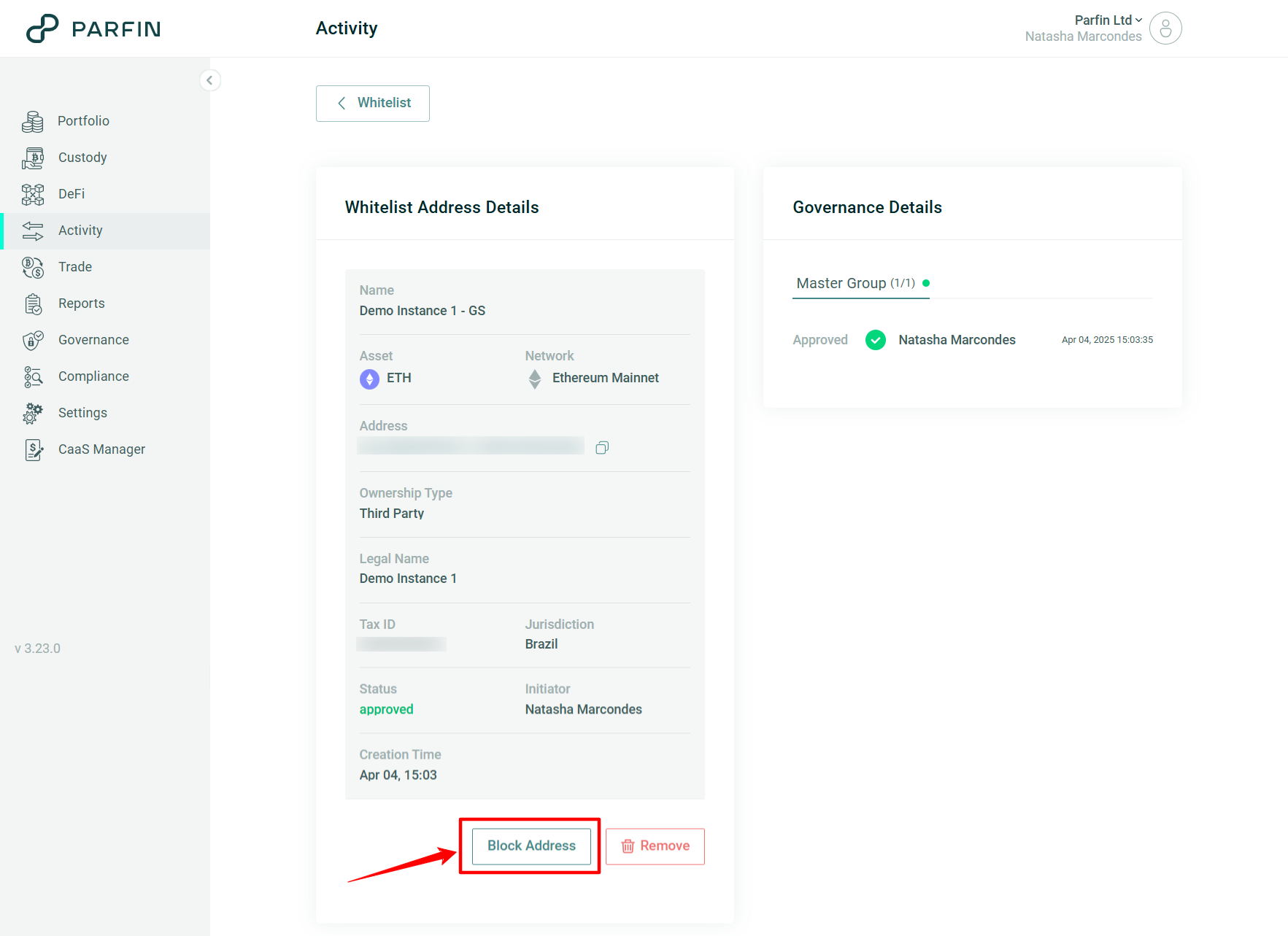
- Open the details page for the whitelisted address in Settings > Whitelist
- Click Block Address to block it or Unblock Address to unblock it
- Fill in the 2FA field
- Confirm the action
Expected result:
- if no additional approvals are required, the change is applied immediately
- if additional approvals are required, the address keeps its current status until final approval
4. Track a pending request
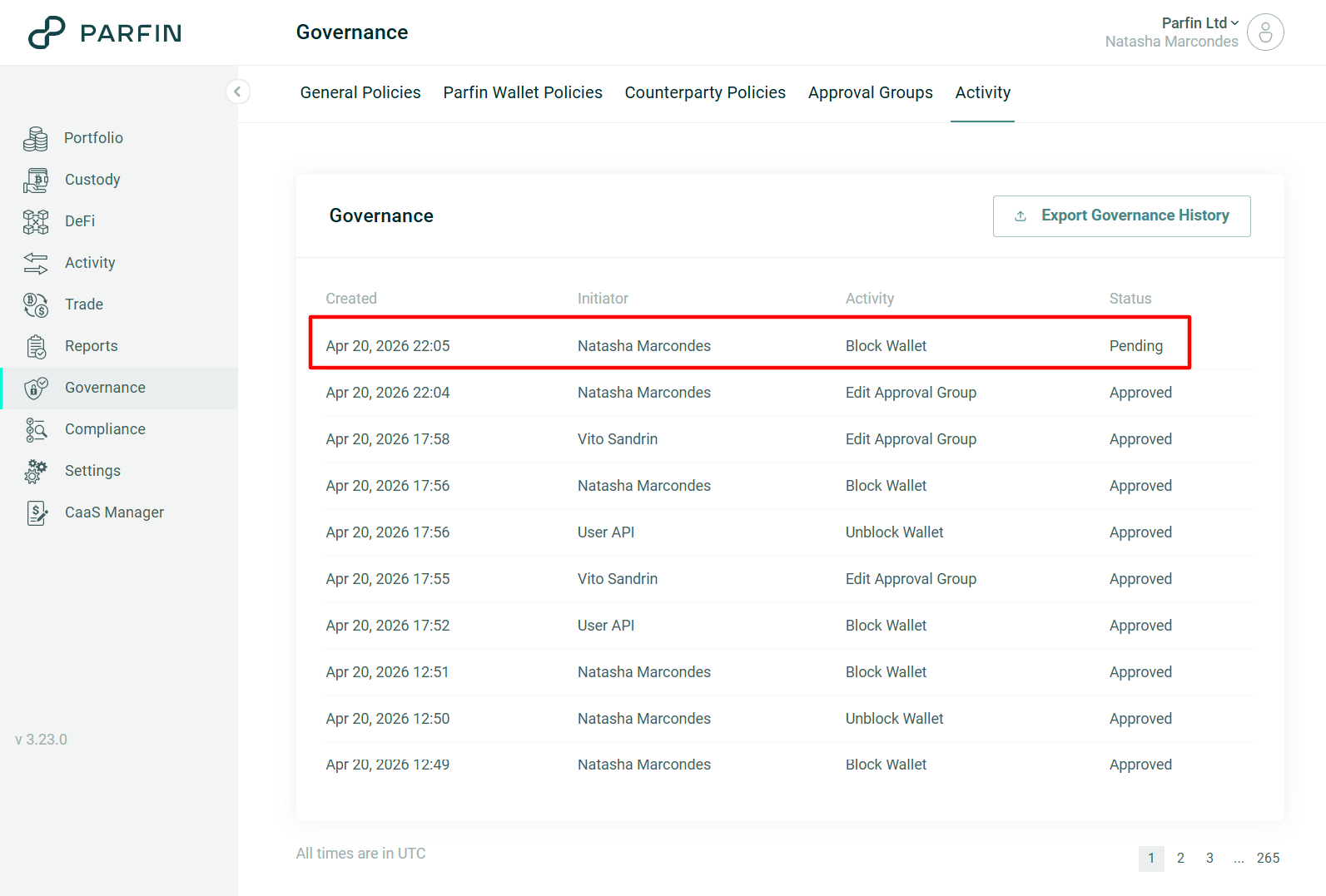
- Go to Governance > Activity
- Find the request by its activity type
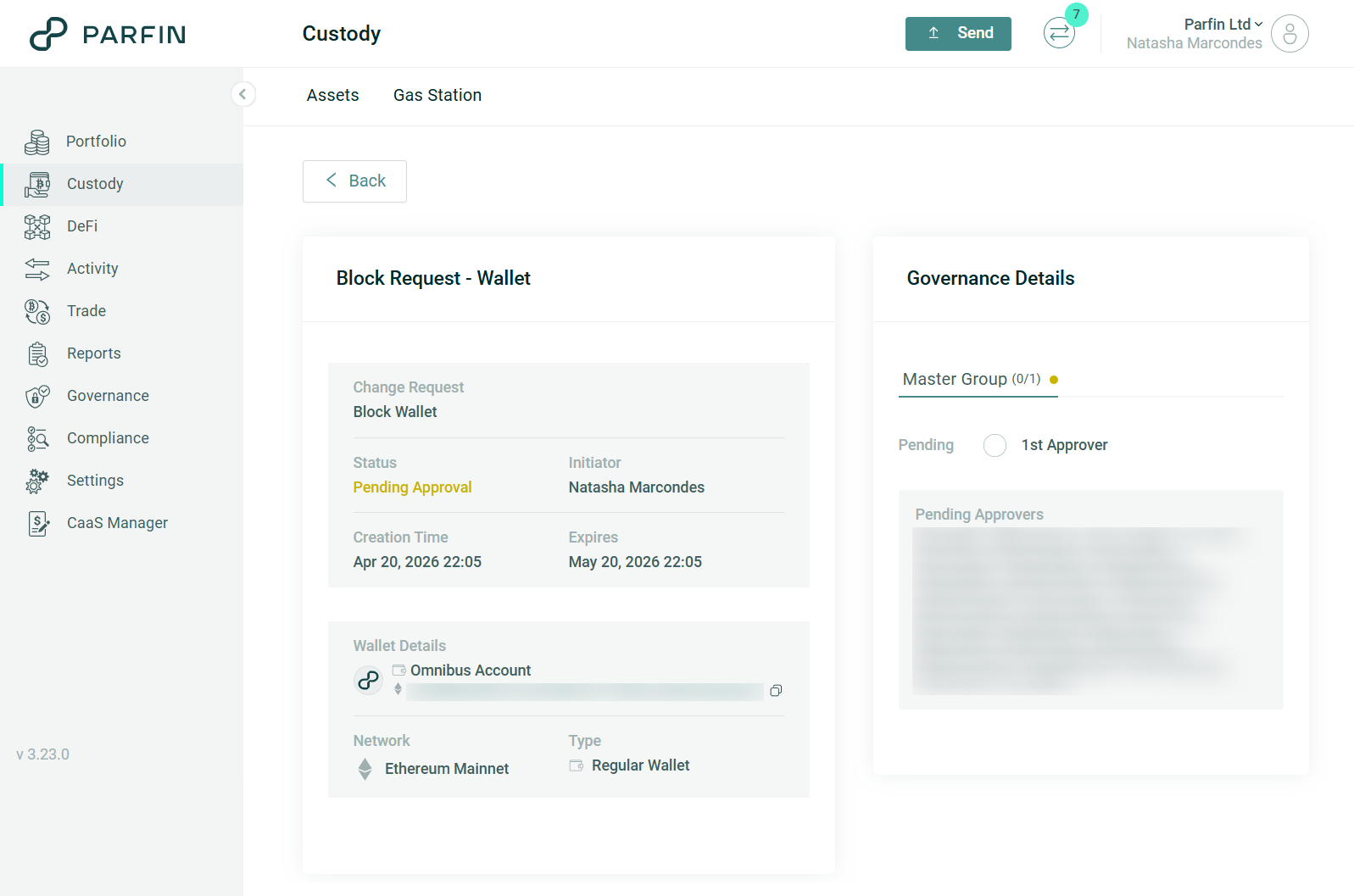
- Open the request details. From there:
- approval quorum participants can approve or reject
- the request initiator can cancel
- every action must be confirmed with 2FA
Notifications and Alerts
When a wallet or whitelisted address enters a blocked state, the recipients configured in Notification Recipients under Compliance > AML are notified by email.
For manual blocks, the blocking reason shown in the email is “Manual blocking.”
Frequently Asked Questions (FAQ)
1. Who can block or unblock a wallet or whitelisted address?
Only instance administrators can request these actions.
2. Is the block or unblock applied immediately?
It depends on the configured governance rule. If the required quorum is already satisfied at the time of the request, the change may be applied immediately. Otherwise, it remains pending until final approval.
3. What happens while the request is pending?
The resource keeps its current status. The Platform displays a pending banner and does not allow a new request for the same resource.
4. What happens if the request is rejected, canceled, or expires?
Nothing changes on the resource. Its previous status is preserved.
5. What happens if the instance does not have the required governance rule configured?
The Platform does not allow the action to be performed.
6. Can a blocked wallet still be used?
No. When a wallet is blocked, operational actions become unavailable.
7. Does a blocked whitelisted address disappear from the list?
No. It remains visible, but it cannot be selected in a withdrawal flow.